Tag Archives: Raspberry Pi

Basics of GCC Linker Scripts

Even if you have been using the GCC suite of compilers heavily for years, it is unlikely you have had to create a Linker Script. Linker Scripts are needed when fine-grained control over the memory layout of an executable is required. Most C/C++ code is compiled to an application or service for a specific OS platform, so memory layout is both pre-defined and generally pretty relaxed.

This is not the case for Bare Metal code. When developing for bare metal, the location of the entry point for the code and the locations of global statics, the stack and possibly the heap must be specified. There is no OS or OS Memory Model to be used. The Linker Script defines the foundation of a bare metal code memory model to be used in the output image.

What the Linker Does

The role of the Linker in creating an executable image is to take a collection of input files that contain ‘segments’ and ‘symbols’ and combine those ‘input segments’ into ‘output sections’ of the final image – while also determining the correct value for various unresolved symbols in the ‘input segments’. Additionally, symbols can be defined in a Linker Script and those symbols will be available to source code. Examples of that kind of symbol resolution appear in the example script.

‘Input segments’ are generated by the compilers or assemblers generating the object files linked together to form the output image. As you progress below, ‘segments’ are in object files and ‘sections’ are generated by the linker. Since the code for my bare metal Aarch64 OS is C/C++ (with a little assembly) the C/C++ Memory Model must be used.

Example Linker Script

Linker scripts use the LD Command Language. It is *mostly* specification, there are not if/then style conditionals, though it is possible to test if a symbol is defined. The only required element of a linker script is at least one SECTION. Sections describe the memory layout of the output binary. LD documentation may be found here.

Below is a linker script from a bare metal OS I have been tinkering with for the Aarch64 on the Raspberry Pi. It has a bit of complexity but is still simple enough to understand and either edit or extend for your needs.

As explained at the very top of the script, this is actually a template which is run through the C Preprocessor which then expands the preprocessor directives and generates the final script. The ‘os_memory_config.h‘ file contains the following:

#pragma once

#define STATIC_HEAP_SIZE_IN_BYTES 65536
#define DYNAMIC_HEAP_SIZE_IN_BYTES 65536

The advantage of running this template through the preprocessor is that the symbols STATIC_HEAP_SIZE_IN_BYTES and DYNAMIC_HEAP_SIZE_IN_BYTES are now shared in both the linker script and the C/C++ code base – at C/C++ compile time. It is possible to adjust the size of the heaps from a single file, instead of having to remember that there are two places that must be changed.

Inside the Linker Script

Basic LD Command Syntax

Numeric values in a linker script are all integers and C integer operations are permitted. Symbols may be defined in a linker script. Unquoted symbols follow the same rules as C symbols, but symbols may also be quoted – which permits the inclusion of spaces or perhaps reserved words in the symbol.

Probably the most important symbol is the dot ‘.‘ global symbol. The dot symbol represents the current memory location counter maintained by the linker as it is assembling the output image. It may be both read and set.

Semicolons are required after assignment statements and are permitted in other locations but are not required. If you deep dive and end up using ELF Program Headers, semicolons are required there as well.

Standard C block comments are permitted with /* */ delimiters.

Defining a Memory Block

The snippet above defines a memory block named OS_RAM of 32 megabytes in length, starting at the physical location 0x00080000 which may be read, written to an executed. This location is not an accident – it is the place where the RaspberryPi boot loader loads the OS image. There are additional attributes that can be specified for a memory block and are described in the GCC LD documentation for Memory Layout.

LD permits only a single MEMORY declaration but multiple blocks may be defined in the declaration. It is an optional declaration, if it does not exist, the linker assumes there is sufficient memory for the image.

Defining a Simple Memory Section

Above is the start of the script section specifications and a simple memory section called ‘start’ which is required to start on a 4 byte aligned memory address. The ‘.’ location counter is set to the next four byte aligned location with . = ALIGN(4) and is then read and assigned to the global variable __start with the __start = . statement.

At the end of the section specification, the > OS_RAM directive tells the linker to assign this section to the OS_RAM memory block defined previously in the script. As successive sections are assigned to this block, it will fill. If the size of the sections assigned to the block exceed the 32M size of the block, the linker will exit with an error.

Defining a Section as a Group of Compiler Defined Segments

The C and C++ compilers define code and/or data segments. A section in a linker script usually defines a collection of input segments that are to be grouped into a single section of memory in the output image. An example follows:

The .text section specification contains the KEEP statement in addition to a regular segment inclusion specification. KEEP is not documented in the GCC LD man pages (I have no idea why) but what it does is includes those segments into the linker section and marks them as ‘used’ even if they are not referenced anywhere else in the input object files. Unreferenced input segments will be eliminated as dead code by the linker, unless those segments as identified to be kept. In this case, we need to be sure the .text.boot segment is retained.

The .rodata section includes read only segments defined in the input object files.

The text segment of a C or C++ program is typically the object code to be executed. The C memory model is illustrated below and the different segments can be found in section declaration statements in the Linker Script.

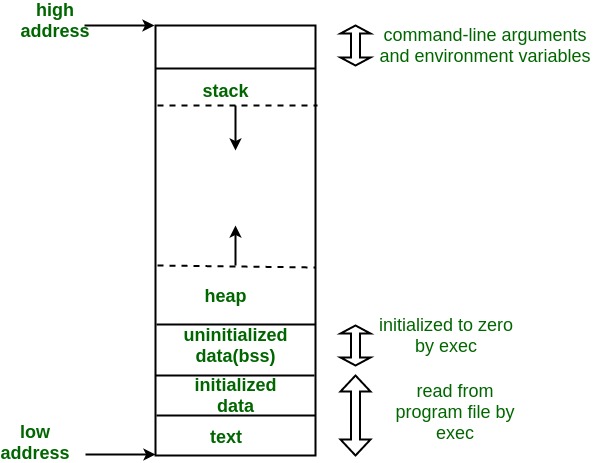
Borrowed from Geeks4Geeks – https://media.geeksforgeeks.org/wp-content/uploads/memoryLayoutC.jpg

The .rodata and .data linker sections are generally the ‘initialized data’ segment of the map.

Wildcards in Section Specifications

The example above contains a couple different uses of the ‘*’ asterisk as a wildcard. When specifying a segment from an input file be assigned to a segment, the actual syntax is ‘foo.o (.input1)‘ where ‘foo.o‘ is the name of an input object file and .input1 is a segment in ‘foo.o‘. If you know that you will have multiple input files with a .input1 segment, then the file specification can be replaced with a wildcard: ‘*(.input1)‘ – which specifies that any .input1 segment in any input file should be included in the output image.

Segment names may also be wildcarded. For example: ‘*(.input*)‘ specifies that any segment that starts with ‘.input‘ in any input file should be included in the output. In this case, segments .input1, .input2, .input345 will be assigned to the linker section. The linker handles wildcards much like the Unix shell with ‘?’ for single characters, ‘[chars]’ for membership and ‘-‘ for range (i.e. ‘[a-z]’).

C++ Static Variable Initialization

Given the object oriented nature of the C++, there needs to be a mechanism to initialize global class instances *before* program execution. In the Linker Script we see this in the .init_array section.

In the snippet above, memory is aligned to a 16 byte boundary before the .init_array section is declared. Then we insure we have 4 byte alignment (should be the case after the prior alignment anyway) and define the __init_array_start symbol as the current memory location. The .init_array segments from the input object code are then assigned to the segment and then a second symbol __init_array_end is set to the new value of the memory location counter.

The __init_array_start and __init_array_end symbols may be referenced in object code and will be linked into the output image. In the Aarch64 startup code, C++ globals are initialized as the last step before jumping to the start of the ‘kernel main’ function. The init array is just a list of void functions that initialize a global static when called. Therefore, all the assembly language does is starts with __init_array_start , gets a 4 byte address, jumps to it, and then moves to the next sequential address until __init_array_end is reached.

In the C memory map, the C++ intialization array is assigned to the ‘initialized data’ portion of the map.

The BSS Section

In the C memory map there is the ‘uninitialized data segment’ called ‘bss’ which is also referenced in the Linker Script. The bss segment is not initialized as the C++ globals are initialized above but the whole section must be set to zero. The relevant section of the Linker Script is below:

There is a similar pattern here. Align the program counter to a 4 byte boundary, set the __bss_start symbol to the current memory location, keep a couple other sections labelled ‘bss’ in the input files, align the current location counter to an 8 byte boundary so we can set double words in memory to zero and finally create the __bss_end symbol with the 8 byte aligned location. The __bss_size_in_double_words symbol is also computed in the linker script and can be referenced in code (example below).

The section is decorated with NOLOAD, which instructs the linker that there is no code or data to be placed in the output file for this part of the memory map. This makes sense for the .bss section – as it will all be explicitly set to zero in startup code. Another type of section that might be decorated with NOLOAD would be ROM which exists on the HW platform and can be referenced but does not need to be present in the image generated by the linker.

Aarch64 startup assembly language to zero out the .bss section:

Defining an Empty Section

Sometimes it is helpful to define an empty block of memory in the output memory map. The .static_heap section below does just that.

This section is aligned to a 4 byte boundary and then the __static_heap_start symbol is set to the current memory location and then the value of the STATIC_HEAP_SIZE_IN_BYTES symbol included from the .h file is added to the current location. After the location is advanced, the __static_heap_end is set to the current location. No input segments from the input files are assigned to the section and nothing is kept. This is just a chunk of memory. I guess it could be decorated with NOLOAD but since there are no input segments specified – there will be nothing to load anyway. Finally, the symbol __static_heap_size_in_bytes is computed for potential use in the code. Based on the location in the linker script, this heap will appear just after the bss section of the C memory map.

Final Interesting Bits

The Linker Script contains a couple more semi-duplicative sections which carve out memory for heaps and stacks. The need for two different stacks will be discussed in my post on Aarch64 bootstrapping code. The last part of the script that is worth mentioning is the DISCARD section.

The DISCARD section is a ‘reserved’ section which can be assigned input segments from the object code files and which will explicitly remove those segments from the output image. In the example above, anything in any .comment segment will be discarded by the linker and anything in any segment starting with .gnu or .note or .eh_frame will be dropped as well.

Adding the Linker Script to the Link Statement

The code snippet below shows the Makefile specification to process the Linker Script Template with the C Preprocessor, write that file to a new file and then use that new file when linking the output image.

There are a bunch of Makefile symbols above – but the key elements should be apparent.

Where to Find the Code

The Linker Script, Makefiles and source code can be found in my Github repository. I have a prior post on the Makefile design which may also be helpful.

Using Packer To Build Development VMs

One fundamental development practice is to have a bullet-proof, repeatable process for building, upgrading and maintaining development environments. My current development practice relies on developing inside a VM using Visual Studio Code’s Remote Development plugin. I treat the development VMs as ‘disposable’, i.e. at any moment in time I ought to be able to commit my work in progress to Github, destroy the VM, build a new one and pick up right where I left off. I should also be able to move seamlessly from one virtualized environment to another – for example, I should be able to develop in the Proxmox VM at home and a VirtualBox VM on my laptop when I travel without any friction between the two.

I use Hashicorp’s Packer tool to automate the VM build and configuration process. I usually maintain two target platforms: 1) a Proxmox server with an NFS backend I maintain at home and 2) VirtualBox which is installed on my laptops. Packer is declarative and supports multiple ‘builders’ for different backends. Both Proxmox and VirtualBox are supported and there is minimal difference in the builder specifications between the two.

Practical Packer

Packer and its builders and provisioners do most of the heavy lifting for you in terms of getting a ‘vanilla’ VM built. Perhaps the most complicated bit is figuring out the correct ‘boot command prefix’ to get past the bootloader. Honestly, getting a prefix that works involves a bit of trial and error and is somewhat cryptic. For the projects I have in Github, the prefix ‘works for me’ but if you are running on either a very fast or very slow machine, then your mileage may vary.

With a ‘vanilla’ VM in hand, the next step is to tailor it to your development needs. Packer is not inherently modular but I have managed to introduce some modularity by providing a collection of scripts that will be run inside the VM after it boots to customize the environment. The Packer specification will invoke these scripts which will either execute or return immediately based on environment variables set from Packer variables which can be set in a HCL file or set on the Packer command line.

The main challenge when executing the scripts is determining if you want the scripted commands to run as root, which is how the provisioner executes shell scripts, or as the ‘development user’ created early in the provisioning process. Essentially, the ‘development user’ is the username you will want to use when logging into the VM for development. The scripts will automatically create this user and assign a single-use password that will have to be changed on first login. The ‘change on login’ feature was not straightforward – so if you want a similar capability, just lift it from my code.

Github Projects

In the https://github.com/stephanfr/Packer repository you will find the Packer specifications for building Ubuntu development VMs in either a Proxmox or VirtualBox environment as well as a project which will allow you to build a VM which can then be used to build bootable, customized RPi images in QEMU. This is a very nice capability and is all due to the work of Mateusz Kaczanowski’s in his PackerBuilderArm Project.

One VM build option sets up an AArch64 bare-metal build environment inside the VM with a directory structure for my RPi Bare Metal OS project. In general though, if you are looking for an easy ARM toolchain setup – you can lift that code as well and modify it for your purposes.

Maintenance

Since I use these specs myself, I will track Ubuntu releases and tooling updates – but the timing is likely to be a bit erratic. I do not generally update tools immediately, I tend to value a stable environment over ‘latest and greatest’ but once a year or so I will update. Mostly updates *should* be limited to tweaking config values but sometimes, stuff just breaks. For example, I have not had success automating deployment of the very most recent Ubuntu VMs.

RPI Bare Metal Cross Compiling Toolchain

Bare metal builds require a specific toolchain and compile options to insure that code normally generated for processes running in a standard OS environment is not generated and various standard libraries are not included.

Cross Compiling

I chose to use a cross-compiling approach for development. It should absolutely be possible to build the OS on a RPI itself with the correct toolchain but there are a lot of advantages that accrue from building on a larger x86_64 system with NFS, etc.

A variety of toolchains are available on the ARM developer website. At present they are all GCC based. Clang builds ought to work as well, though the make files will have to be modified. The toolchain I have been using is: AArch64 bare-metal target (aarch64-none-elf).

Libraries and Header Files

I have avoided using any libraries and the absolute bare minimum of header files to build the OS. This includes creating very minimal replacements for the C standard library, the standard IO library and the C++ standard library. There are a number of platform specific libraries that are required.

Catch2 for Unit Testing

Unit Tests for the project are built using Catch2. At present, unit tests using Catch2 are compiled for the host machine – not cross-compiled for the target platform. Running Catch2 also requires access to some headers and libraries for standard compilation on the host. This is messy – no doubt about it – and this approach will miss issues with data structure alignment, which matters a lot on AArch64 platforms without memory management enabled. Eventually, it will be possible to host the tests on the target platform but for now my focus is to get the code tested in the most straightforward fashion.

Source code coverage metrics are also available for the unit tests using a coverage target in the makefile.

Directory Structure

The make files (yep good old fashioned make) expect the following structure:

~/dev
|--- RPIBareMetalOS
|--- project cloned from github
|--- gcc-cross
|--- aarch64-none-elf
|--- cross compiling files
~/dev_tools
|--- arm-gcc-toolchain
|--- Catch2

There is a script in the root directory of the project named setup_dev_env.sh which will setup the development environment. If you have a vanilla Ubuntu (or probably any reasonable Debian based instance) you can simply execute that script and it will install the cross compiling toolchain, Catch2, QEMU for AArch64 and then create the correct directories and copy files to the right places.

Quick Build

There will be another post with greater detail on the build process, however the steps to build are straightforward. To get a running OS, simply do the following after cloning the project from Github:

cd RPIBareMetalOS/
cd minimalclib/
make all
cd ../minimalstdio/
make all
cd ../rpibaremetalos/
cd resources
unzip sd_compressed.zip
cd ..
make armstub_all
make all

The to run the OS in QEMU:

cd image/
qemu-system-aarch64 -M raspi3b -kernel kernel8.img -serial stdio -sd sd.img

Repeatable Scripted Setup

My development pattern is to create an Ubuntu VM customized for various projects and develop within it using the Remote Development Extension in Visual Studio Code. I run a Proxmox server at home but also use VirtualBox.

I have a separate project with Packer scripts to create Ubuntu development VMs in either of the two hypervisors listed above. Modifying the script for other hypervisors should be straightforward. In addition to the build process, there are a number of install scripts that are available to customize the VM after creation, one of which sets up an AArch64 bare metal toolchain and the directory structure I use for development. After building the VM with the right options, one should be able to simply clone the bare metal OS repository, build and run on QEMU.

The github repository for the Packer scripts is: https://github.com/stephanfr/Packer

An example command line to build a development VM template in Proxmox is:

packer build -var "dev_username=????" -var "dev_password=password" -var "proxmox_host=????" -var "proxmox_node_name=????" -var "proxmox_api_user=packer@pve" -var "proxmox_api_password=ubuntu" -var "ssh_username=packer" -var "ssh_password=password" -var "vmid=????" -var "http_interface=????" -var "install_aarch64_cross=true" -var-file="./22.04/ubuntu-22-04-version.pkrvars.hcl" -var-file="./proxmox/proxmox-config.pkrvars.hcl" -var-file="vm_personalization.pkrvars.hcl" ./proxmox/ubuntu-proxmox.pkr.hcl

After the template is created, clone it and then you will be good to go.

An example command line to build a development VM in VirtualBox appears below:

packer build -var "dev_username=????" -var "dev_password=password" -var "ssh_username=packer" -var "ssh_password=ubuntu" -var "install_aarch64_cross=true" -var-file="./22.04/ubuntu-22-04-version.pkrvars.hcl" -var-file="./virtualbox/virtualbox-config.pkrvars.hcl" -var-file="vm_personalization.pkrvars.hcl" ./virtualbox/ubuntu-virtualbox.pkr.hcl

Replace the ‘????’ sequences with appropriate values. At first login as the development user, you will be forced to change the user’s password.

More documentation can be found in the README file in the Packer script repository.

Building a Raspberry Pi 64 Bit Operating System with C++

I have undertaken many different projects through the years, one area which I have not really explored is Operating System development. When I started developing software on 8 bit computers, the closest you came to an OS was a ‘monitor’ or perhaps a ‘Master Control Program’ for those old enough to remember Tron.

I have started tinkering with a 64 bit operating system for Raspberry Pi based computers. Given how powerful those small single board computers have become, they make a great platform for OS experimentation.

My goals for this project are four-fold:

  1. Get back to ‘bare metal basics’ for a while
  2. Provide a platform for experimentation with different approaches to OS architecture
  3. Explore the advantages and disadvantages of C++ for OS development
  4. Provide a collection of tutorials and working code for others to learn from

C++ for OS Development

There is a definite bias against C++ for bare metal programming, though increasingly there are bare metal projects utilizing C++. In the Raspberry Pi ecosystem, the Circle – C++ Bare Metal Environment for Raspberry Pi is perhaps the best and most useful example. It is a remarkable system.

Prior to C++ 11, I probably would not have considered this but now at C++ 20 and beyond the language system is both rich enough and flexible enough to span from bare metal up to the highest application layer development. At the time of writing, this project is built with C++ 20.

Part of my goal is to create a single image which runs across multiple RPI versions and makes obvious the points at which board specific code is required. My approach is to create interfaces using classes and abstract virtual functions which, yes adds a bit of overhead but anymore it is minimal. The optimizations available in modern compilers and increased clarity associated with C++ code may help close the performance gap between C and C++.

I am not particularly concerned about size at present. On systems with gigabytes of RAM, the difference between a 64k kernel and a 128k kernel is negligible. Honestly the kernel size is going to be much more tightly correlated to the OS architecture than the implementation language or optimizations. A monolithic kernel containing lots of services will be big whereas a microkernel with most services running in user space will be much smaller. These days though, I tend to favor speed over size.

Managing Privileges for Automated Raspberry Pi GPIO Testing

Many RPi libraries manipulate the GPIO pins by mapping various GPIO control memory blocks into the process address space. For GPIO input/output pins only, the Raspberry Pi OS kernel supports the /dev/gpiomem device which can be accessed from user space. For any other GPIO functions, such as setting up a PWM output, other memory blocks must be accessed through /dev/mem.

Typically, the base address of the desired control block is mapped into the process address space using the mmap command which takes a file descriptor for a /dev/mem device. User space processes cannot open the /dev/mem device, so a common workaround is to run the process as root using sudo. Additionally, GPIO ISR handling typically has much higher fidelity when the ISR dispatching thread runs at one of the ‘real-time’ thread schedules. This too requires elevated privileges.

For many use cases, like automated CI/CD running a test process under sudo is a less than optimal approach and certainly violates the ‘Principle of Least Privilege’. Typically, these kinds of impediments result in skipping automated testing -or- using workarounds like putting root passwords in response files.

Bluntly, there is no way to provide elevated privileges to a process without incurring some security risk and for clarity the approach described below is not strictly *secure* – I feel it is better and more constrained than most of the alternatives I have found. Certainly for hobbyists and individuals working on a benchtop, this is probably more than ‘good enough’.

Background

The RPi maps the GPIO controls into physical memory at 0x3F000000 for BCM2835 (Models 2 &3) and 0x7E200000 for BCM2711 (Model 4) based RPis. To do this, a snippet of code like the following is used :

constexpr uint32_t MAPPED_MEMORY_PROTECTION = PROT_READ | PROT_WRITE | PROT_EXEC;
constexpr uint32_t MAPPED_MEMORY_FLAGS = MAP_SHARED | MAP_LOCKED;

uint32_t peripheral_base = 0xFE000000;
uint32_t gpio_offset = 0x200000;
uint32_t gpio_block_size = 0xF4;

int dev_mem_fd = open("/dev/mem", O_RDWR | O_SYNC );
void*  gpios = mmap( nullptr, gpio_block_size, MAPPED_MEMORY_PROTECTION, MAPPED_MEMORY_FLAGS, dev_mem_fd, peripheral_base + gpio_offset );

The /dev/mem device cannot be opened if the process does not have the CAP_SYS_RAWIO capability. There are a lot of other operations that are permitted for processes with that capability – but an ability to map physical memory into a virtual address space opens up a whole plethora of potential compromises.

Unfortunately, without this privilege any app needing to mount /dev/mem will have to be run with sudo – which is difficult to manage in an automated pipeline or even when running unit tests within an IDE, like using Catch2 in VSCode.

Workaround

Linux permits capabilities to be assigned to files, so it is possible to provide the CAP_SYS_RAWIO capability to specific files – for instance the unit test app created by a makefile. To do this, the following will suffice:

sudo setcap cap_sys_rawio tests

However, every time the tests file is rebuilt, the capabilities must be re-assigned – so we have not really made much progress, there is still a need for the user to intervene and provide a root password after every build.

To workaround this, the interactive user could grant herself the CAP_SETFCAP capability and then the snippet above can be run without requiring sudo. Giving a process CAP_SETFCAP capability is just one small step away from simply running as root, so we should strive for something better.

It is possible to permit a user or group to execute commands with sudo but without requiring a password by adding entries to a sudoers file. In fact, this capability can be fairly tightly constrained to very specific command patterns. These files can be placed under /etc/sudoers.d/ and will be picked up by the sudo processor. An example appears below :

steve ALL=(root) NOPASSWD:  /sbin/setcap cap_sys_rawio+eip /home/sef/dev/unit_tests/tests
steve ALL=(root) NOPASSWD: !/sbin/setcap cap_sys_rawio+eip /home/sef/dev/unit_tests/tests*..*
steve ALL=(root) NOPASSWD: !/sbin/setcap cap_sys_rawio+eip /home/sef/dev/unit_tests/tests*[ ]*

In the example, the first line permits user steve to run /sbin/setcap cap_sys_rawio+eip /home/sef/dev/unit_tests/tests without having to supply a password. The next two lines have an exclamation point to negate the operation and effectively eliminate any permutations of the prior line which could be used to grant the capability to a different, unintended file.

This combination puts us in a place where any process running under steve can provide the CAP_SYS_RAWIO capability to only the /home/sef/dev/unit_tests/tests file without having to supply the root password. Clearly, if steve‘s account is compromised it would possible for someone to gain root – but the attacker would have to do a lot more work to get there if privileges had been provided indiscriminately or if the root password were placed in a response file.

Doing the above gets us close, but there is one more step needed. The /dev/mem file is owned by root and can only be accessed by root. Assigning capabilities granularly elevates privileges in the interactive process but that process is still not root. To resolve this final stumbling block, we can modify the ACL for /dev/mem to permit the interactive user to access it. An example of how to do this appears below :

sudo setfacl -m u:steve:rw /dev/mem

This command will not persist through reboots, but needs to be executed only once after a reboot. It would be possible to make this assignment persistent if desired.

Putting It All Together

The good news is that all of the above can be *mostly* automated as part of a CMake specification. Only two infrequent manual steps are required.

The following example uses a pair of template files and some CMake specifications to create a specialized sudoers file and a specialized shell script for setting the ACLs properly for /dev/mem. Peronally, I put the templates in the misc subdirectory of my unit tests folder and the CMakeLists.txt file is in the unit test folder itself. For the purposes of this example, the templates must simply be in the subdirectory misc of the directory holding the CMakeLists.txt file.

#
#   Allow setcap execute without a password only for the CAP_SYS_RAWIO capability on
#       the tests file.  The negative patterns are intended to reduce the risk of anything 
#       other than just 'tests' being modified
#
#   Copy the generated file with the variables replaced into the /etc/sudoers.d directory
#

$ENV{USER} ALL=(root) NOPASSWD:  /sbin/setcap cap_sys_rawio+eip ${CMAKE_CURRENT_BINARY_DIR}/tests
$ENV{USER} ALL=(root) NOPASSWD: !/sbin/setcap cap_sys_rawio+eip ${CMAKE_CURRENT_BINARY_DIR}/tests*..*
$ENV{USER} ALL=(root) NOPASSWD: !/sbin/setcap cap_sys_rawio+eip ${CMAKE_CURRENT_BINARY_DIR}/tests*[ ]*

Adding the following to the CMakeLists.txt file will generate the final sudoers file. The CMake file command copies the generated file back into the source directory next to the template whilst also setting the file permissions appropriately. After the file is generated, it must be manually copied with the right file permissions to the /etc/sudoers.d/ directory, as that operation requires root privilege.

configure_file( ./misc/020_setcap_rawio_on_test_app.in ${CMAKE_CURRENT_BINARY_DIR}/misc/020_setcap_rawio_on_test_app )
file( COPY ${CMAKE_CURRENT_BINARY_DIR}/misc/020_setcap_rawio_on_test_app
      DESTINATION ${CMAKE_CURRENT_SOURCE_DIR}/misc
      FILE_PERMISSIONS OWNER_READ GROUP_READ WORLD_READ )

Finally, adding the following to the CMakeLists.txt file will assign the CAP_SYS_RAWIO capability to the tests file every time it is generated.

add_custom_command(TARGET tests POST_BUILD
                   COMMAND sudo setcap cap_sys_rawio+eip ${CMAKE_CURRENT_BINARY_DIR}/tests)

To make the ACL assignment easier, a similar process is used. First, a template file which will be processed by CMake is needed :

#!/bin/bash
sudo setfacl -m u:$ENV{USER}:rw /dev/mem

Then, the right magic in CMakeLists.txt to process the template file :

configure_file( ./misc/set_devmem_acl.in ${CMAKE_CURRENT_BINARY_DIR}/misc/set_devmem_acl.sh )
file( COPY ${CMAKE_CURRENT_BINARY_DIR}/misc/set_devmem_acl.sh
      DESTINATION ${CMAKE_CURRENT_SOURCE_DIR}/misc
      FILE_PERMISSIONS OWNER_READ OWNER_WRITE OWNER_EXECUTE GROUP_READ GROUP_EXECUTE WORLD_READ WORLD_EXECUTE )

This will create a shell script with the proper substitutions for the interactive user. This script needs to be executed once per session which seems a reasonable compromise. Alternatively, the sudoers file could be enriched to permit the command to be executed without a password and then even the process of permitting the interactive user access to /dev/mem can be used in automated scripts.

Adding CAP_SYS_NICE

As mentioned in the introduction, ISRs servicing GPIO interrupts will typically need to run with realtime scheduling for reasonable performance. The main risk that concerns me is *missing interrupts* and beyond a couple kilohertz on an RPi4 it is easy to lose interrupts. Realtime scheduling in Linux can be applied at the thread level using pthread_setschedparam in something like the following:

if (realtime_scheduling_)
{
    struct sched_param thread_scheduling;

    thread_scheduling.sched_priority = 5;

    int result = pthread_setschedparam(pthread_self(), SCHED_FIFO, &thread_scheduling);

    if( result != 0 )
    {
        SPDLOG_ERROR( "Unable to set ISR Thread scheduling policy - file may need cap_sys_nice capability.  Error: {}", result );
    }
}

Using realtime scheduling is something of a risk as poorly designed code can starve the rest of the system, or perhaps more frequently a user looking for more responsivity can ‘nice’ their processes to the detriment of other processes. Therefore, the CAP_SYS_NICE capability is required to execute the above snippet.

The templates above can be enriched to include CAP_SYS_NICE, but there are a few details that *really matter*. The nastiest little complication is the difference in how the comma (i.e. ‘,’) is used by the setcap command and how the comma is interpreted in a sudoers file. In both cases it is a separator, to separate multiple capabilities for setcap and to separate different commands in the sudoers file. Therefore, within the setcap command in the sudoers file, the comma must be escaped with a backslash. The following is the template from above including the CAP_SYS_NICE capability.

#
#   Allow setcap execute without a password only for the CAP_SYS_RAWIO and CAP_SYS_NICE capabilities
#       on on the tests file.  The negative patterns are intended to reduce the risk of anything
#       other than just 'tests' being modified
#
#   Copy the generated file with the variables replaced into the /etc/sudoers.d directory
#

$ENV{USER} ALL=(root) NOPASSWD:  /sbin/setcap cap_sys_rawio\,cap_sys_nice+eip ${CMAKE_CURRENT_BINARY_DIR}/tests
$ENV{USER} ALL=(root) NOPASSWD: !/sbin/setcap cap_sys_rawio\,cap_sys_nice+eip ${CMAKE_CURRENT_BINARY_DIR}/tests*..*
$ENV{USER} ALL=(root) NOPASSWD: !/sbin/setcap cap_sys_rawio\,cap_sys_nice+eip ${CMAKE_CURRENT_BINARY_DIR}/tests*[ ]*

As shown above, the comma separating capabilities is escaped with a backslash. Similarly, the setcap command used to assign capabilities to the tests file will have to be modified in the CMakeLists.txt specification.

Conclusion

Hopefully the content in this post will help not only manage permissions necessary for developing GPIO applications on the RPi but also provide some insight into how CMake can be used to generate various kinds of files from templates for specific use cases. I use these in my CMake files in VSCode while developing remotely on RPi 3s and 4s and it is certainly a lot more fluid a development experience than having to enter the root password all the time.